
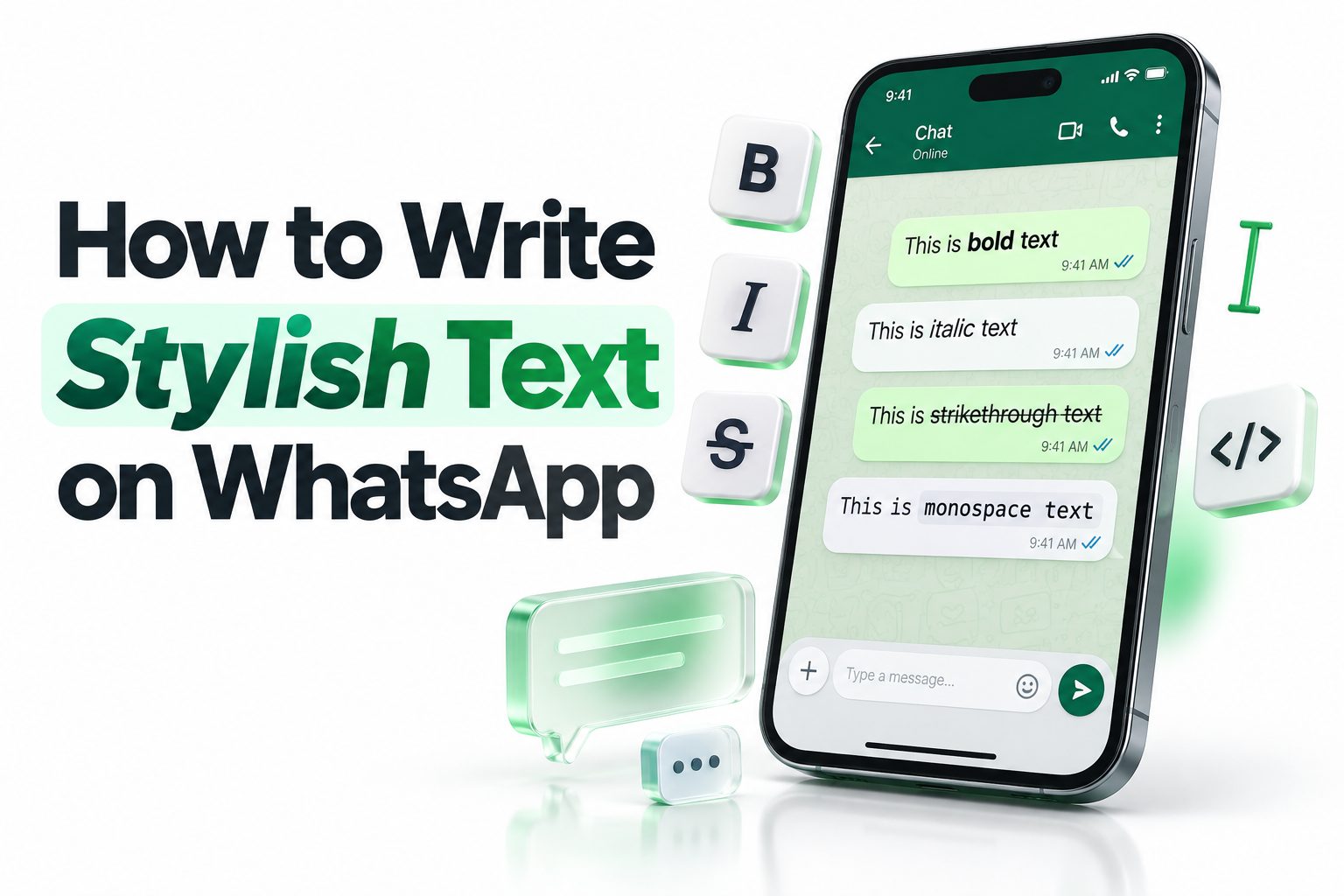
WhatsApp messages do not have to look plain or predictable. A few simple formatting tricks can make important words stand out, organize long messages, and give casual conversations more personality. You can emphasize a deadline, cross out an outdated detail, quote someone clearly, or make a status update look more creative without installing another app.
Learning how to write stylish text on WhatsApp is surprisingly easy because the application includes several built-in formatting options. Bold, italics, strikethrough, monospace, lists, quotes, and inline code can all be created with ordinary keyboard symbols. You can also use Unicode text generators for decorative letters, although those styles require more care. This article explains every practical method for Android phones, iPhones, WhatsApp Web, and the desktop application. It also covers common formatting mistakes, readability tips, privacy concerns, and useful examples for personal and professional messages. Once you know the right symbols and shortcuts, polished text takes only a few seconds to create.
Built-In WhatsApp Text Formatting
WhatsApp recognizes specific symbols placed immediately before and after text. When the syntax is correct, the application changes how the enclosed words appear. This formatting works in private chats, groups, captions, announcements, and many other places where WhatsApp accepts ordinary text.
Built-in styles are usually the safest choice because recipients do not need special fonts, applications, or device settings. The message remains searchable and easy to copy. Results can occasionally vary between older app versions, so keeping WhatsApp updated helps maintain consistent formatting across devices.
Writing Bold Text on WhatsApp
To create bold text, place an asterisk directly before and after the relevant word or phrase. Typing *Meeting at 4 PM* makes the enclosed message appear bold after it is sent. Do not leave spaces between the asterisks and the text.
Bold formatting works best for deadlines, headings, prices, names, and actions that require attention. Avoid making an entire long message bold, since excessive emphasis becomes difficult to scan. One or two carefully selected phrases usually communicate priority more effectively than a fully bold paragraph.
Quick Formatting Reference
- Bold: Place an asterisk on both sides — *important message*
- Italics: Place an underscore on both sides — _important message_
- Strikethrough: Place a tilde on both sides — ~old information~
- Monospace: Place three backticks on both sides — “`fixed-width text“`
- Inline code: Place one backtick on both sides — `code`
- Quote: Start the line with a greater-than symbol and a space — > quoted text
- Bulleted list: Start each line with an asterisk or hyphen followed by a space
- Numbered list: Start each line with a number, period, and space
Using Italics for Subtle Emphasis
Italic text is created by placing an underscore immediately before and after the desired content. For example, typing _please confirm today_ displays the phrase in italics. The underscores should touch the first and last characters, without spaces inside the formatting marks.
Italics provide gentler emphasis than bold text. They suit book titles, foreign words, short notes, personal thoughts, and polite reminders. Italics can also communicate tone, but they should not carry crucial meaning alone because fast-moving readers may overlook the visual difference.
Adding Strikethrough Text
Strikethrough draws a horizontal line through selected text. Add a tilde before and after the words, such as ~Friday at noon~. This style is useful when correcting a plan while keeping the original detail visible for context.
A crossed-out phrase can also add humor or show a playful change of mind. In practical conversations, use it to mark completed items, cancelled options, or revised prices. Always place the replacement information nearby so the recipient knows which detail is currently valid.
Italic and Strikethrough Examples
- Gentle reminder: _Please send the document before lunch._
- Publication title: I finished reading _The Great Gatsby_ yesterday.
- Revised schedule: The call is at ~2 PM~ 3 PM.
- Updated price: The original fee was ~$50~ $40.
- Completed task: ~Book the hotel room~
- Playful correction: I will eat one slice of pizza, ~probably~ definitely.
Creating Monospace Text
Monospace formatting gives every character the same horizontal width. Place three backticks before and after the selected text. It is especially helpful for reference numbers, commands, short technical instructions, product codes, or any content whose exact character sequence matters.
The backtick is different from an apostrophe. Its location varies by keyboard, and mobile users may need to open the symbols panel. Since three marks are required on each side, check the message preview carefully before sending technical details to another person.
Formatting Inline Code
Some WhatsApp versions support inline code using a single backtick before and after a short expression. It is a convenient option for filenames, commands, variable names, or brief snippets that need visual separation without occupying an entire block of the message.
Feature availability can differ across app releases and devices. If single-backtick formatting does not appear correctly, use the traditional three-backtick monospace format instead. For long code samples, send a document or link because chat messages can introduce unwanted line wrapping and reduce clarity.
Choosing Between Monospace Options
Feature | Best use | Symbol pattern
Full monospace | Codes, commands, reference details | Three backticks on each side
Inline code | Short technical terms within a sentence | One backtick on each side
Bold text | Critical labels or instructions | One asterisk on each side
Plain text | Normal explanations and conversation | No formatting symbols
Creating Bulleted Lists
Bulleted lists make shopping items, meeting topics, instructions, and feature summaries easier to scan. Begin each new line with an asterisk or hyphen followed by a space. Write one clear item per line and keep the grammatical structure consistent throughout the list.
WhatsApp may convert the lines into a formatted list automatically, depending on the application version. Even when automatic conversion is unavailable, typed hyphens remain readable. Leave a blank line before the list when it follows a paragraph so the items do not look crowded.
Building Numbered Lists
For an ordered list, begin a new line with a number, period, and space. Continue with the next number on each line. This structure is ideal for recipes, setup instructions, payment steps, event schedules, and any process that must be followed sequentially.
Keep individual steps short enough to read comfortably on a phone screen. When a step needs extra explanation, add a separate sentence beneath it instead of creating one oversized line. Confirm the numbering before sending, particularly when the correct order affects safety, access, or payment.
Useful List Examples
Shopping list
- Coffee beans
- Fresh milk
- Brown bread
- Dishwashing liquid
Simple instruction sequence
1. Open the group chat.
2. Tap the attachment icon.
3. Select the required document.
4. Add a short caption.
5. Review the file before sending.
Quoting Text in a Message
A block quote visually separates referenced text from your response. Start a new line with a greater-than symbol followed by a space, then enter the quoted statement. This is useful when answering one point from a long message or highlighting a rule in an announcement.
WhatsApp also lets you reply directly to an earlier message, which creates a linked quotation automatically. Use direct replies when conversation history matters. Manual quote formatting works better for copied statements, short excerpts, policies, or material taken from outside the current chat.
Combining Multiple Text Styles
WhatsApp allows compatible styles to be nested by placing more than one formatting symbol around the same words. For instance, an asterisk and underscore can make a phrase bold and italic. Both opening symbols must have matching closing symbols in the correct reverse order.
Combined formatting should be used sparingly. Bold italics can strengthen a short warning or announcement title, while strikethrough combined with another style may become visually messy. Send a test message to yourself when using several symbols, especially if punctuation appears next to the formatted phrase.
Combination Checklist
- Match every opening symbol with the correct closing symbol.
- Keep formatting marks directly beside the enclosed text.
- Close the inner style before closing the outer style.
- Test unfamiliar combinations in a private chat.
- Use combined styles only for short, important phrases.
- Check that punctuation has not interrupted the formatting pattern.
- Prefer simpler formatting when accessibility is a priority.
Formatting Text Through the WhatsApp Menu
You do not always need to remember symbol combinations. On many Android phones and iPhones, you can type a message, select the desired words, and open the contextual formatting menu. Available choices commonly include bold, italic, strikethrough, and monospace.
On Android, the options may appear under a three-dot menu after text is selected. On an iPhone, they may appear through the BIU or formatting control. Labels and menu positions can change with operating-system and WhatsApp updates, but the selection process remains similar.
Using Formatting on WhatsApp Web and Desktop
The same text symbols generally work on WhatsApp Web and the desktop application. A physical keyboard makes repeated formatting particularly convenient, especially for customer replies, team updates, event plans, and other messages that contain several organized sections.
Keyboard selection menus may not provide every mobile formatting option, so symbol-based syntax is often faster. Draft longer messages in a plain-text editor if needed, then paste them into WhatsApp and confirm the formatting. Avoid rich-text editors that may replace ordinary punctuation with look-alike characters.
Device-Based Formatting Tips
- Android: Long-press the text and check the extended formatting menu.
- iPhone: Select the text and look for the formatting or BIU option.
- WhatsApp Web: Type formatting symbols directly with the keyboard.
- Desktop app: Use symbols and review the message before pressing Enter.
- Multiple devices: Send a sample to your own chat to compare appearance.
Writing Decorative Text with Unicode Characters
Decorative text tools replace standard letters with visually different Unicode characters. These characters can resemble cursive, outlined, circled, bold, or small-cap lettering. Users normally type a phrase into a generator, copy the transformed result, and paste it into WhatsApp.
Unlike native WhatsApp formatting, decorative Unicode is not a true font setting. The message contains substitute characters from the Unicode standard. Appearance depends on the recipient’s device, operating system, available typefaces, and accessibility tools, so elaborate results are less predictable than built-in styles.
Using Stylish Text Generators Safely
A generator can be useful for a short status, nickname, greeting, or promotional heading. Enter only non-sensitive wording, compare several readable options, and paste the preferred version into a private test chat before publishing it to contacts or groups.
Never enter passwords, verification codes, confidential client details, addresses, or private conversations into an unknown website or keyboard application. Some services collect submitted text or display aggressive advertising. A stylish heading is not worth exposing sensitive information or granting unnecessary permissions to a third-party application.
Safe Generator Checklist
- Use generators only for public or non-sensitive phrases.
- Avoid tools that demand account access without a clear reason.
- Review keyboard applications before granting full-access permissions.
- Test decorative characters on more than one device.
- Choose readable styles instead of heavily distorted lettering.
- Keep names, phone numbers, and critical instructions in standard text.
- Remove a tool if it requests unrelated permissions.
Creating Stylish WhatsApp Status Updates
A status update has limited viewing time, so the opening line should communicate the main idea quickly. Use one decorative heading or a short bold phrase, then keep supporting information simple. Clear spacing often improves a status more than complicated lettering does.
For event promotions, include the date, time, location, and response method in ordinary readable characters. Decorative text may attract attention, but essential details must remain easy to copy and remember. Consider adding a relevant image while keeping the caption concise and properly formatted.
Improving Business and Customer Messages
Businesses can use formatting to organize order confirmations, appointment reminders, delivery updates, and customer-support instructions. Bold labels such as Order Number, Payment Status, and Delivery Date help recipients locate essential information without reading every sentence in detail.
Consistency is more valuable than decoration in professional chats. Use the same order of information, label style, and closing format across routine messages. A reusable template reduces errors and strengthens brand presentation. See [Internal Link: WhatsApp Business Messaging Tips] for related communication practices.
Business Message Template
*Order Confirmed*
Order number: 58421
Product: Wireless keyboard
Amount: $45
Delivery date: 18 September
_We will send another message when your order leaves our
For assistance, reply to this chat with your order number.
Making Group Messages Easier to Read
Group chats move quickly, and unstructured announcements are easily missed. Begin with a short bold heading, place essential facts near the top, and use bullets for separate items. End with one direct action, such as confirming attendance or submitting a document.
Avoid decorating every line, using excessive capital letters, or inserting too many emojis. These choices compete with the actual message. For recurring updates, adopt a familiar structure so group members immediately recognize the topic, deadline, and action expected from them.
Using Emojis with Stylish Text
Emojis can reinforce meaning, separate categories, and make casual messages warmer. A calendar icon beside a date or a location pin beside an address offers a useful visual cue. One relevant emoji often works better than a long row of decorative symbols.
Do not replace essential words entirely with emojis because their appearance and interpretation can vary. Professional messages should use them selectively, while informal chats allow more freedom. Place emojis outside formatting symbols when an enclosed emoji causes bold or italic syntax to behave unexpectedly.
Readability Tips for Group and Social Messages
- Put the key information in the first few lines.
- Use one main heading rather than several competing headings.
- Break schedules and requirements into lists.
- Limit emojis to those that clarify meaning.
- Keep decorative Unicode away from dates and addresses.
- End announcements with a specific action.
- Read the message once from the recipient’s perspective.
Common WhatsApp Formatting Mistakes
The most common error is leaving a space between a formatting symbol and the text. For example, * important * may remain unchanged because the asterisks do not touch the phrase. Missing closing symbols and using the wrong punctuation mark also prevent styles from appearing.
Copying content from websites or word processors can introduce smart punctuation, invisible spaces, or unusual Unicode symbols. If formatting fails, delete the surrounding marks and type them again using the WhatsApp keyboard. Testing a short phrase helps isolate the problem before you rebuild a long message.
Fixing Formatting That Does Not Appear
First, confirm that WhatsApp is updated on your device. Then check the opening and closing symbols, remove internal edge spaces, and make sure line breaks have not separated the marks from the intended text. Try the same syntax in your personal message thread.
If the recipient still sees raw symbols, their application version may not support the feature or a copied character may be incorrect. Resend the information in plain text when clarity matters. Formatting should support communication, never prevent someone from accessing the actual message.
Quick Troubleshooting Sequence
1. Check the opening and closing symbols.
2. Remove spaces beside the formatted words.
3. Retype copied punctuation manually.
4. Test the style on a short phrase.
5. Update WhatsApp to the latest available version.
6. Compare the result on another device.
7. Send plain text if the problem continues.
Keeping Stylish Messages Accessible
Decorative Unicode can create problems for screen readers, search tools, translation features, and people with visual or cognitive accessibility needs. Characters that look like ordinary letters may be announced as mathematical symbols or ignored, making a seemingly attractive sentence difficult to understand.
Use standard text for instructions, phone numbers, dates, payment details, emergency information, and workplace communication. Native bold or italics generally offer better readability than decorative alphabets. For more inclusive writing practices, visit [Internal Link: Accessible Mobile Content Tips] before preparing public-facing campaigns.
Balancing Style and Clarity
A stylish message succeeds when design helps the reader notice structure and meaning. Start with the communication goal, then choose the lightest formatting needed to support it. A bold deadline, a numbered process, or a quoted sentence usually provides enough visual distinction.
Before sending, scan the message on a small screen. Check line length, spacing, contrast, and the number of emphasized elements. If everything demands attention, nothing feels important. Remove unnecessary styling until the intended hierarchy becomes obvious within a few seconds.
Final Quality Checklist
- The main purpose appears near the beginning.
- Important details use native formatting where possible.
- Paragraphs remain short enough for mobile reading.
- Lists follow a consistent grammatical pattern.
- Decorative text is limited to non-essential wording.
- Dates, prices, links, and contact details are accurate.
- The message has been reviewed before sending.
- Accessibility and recipient preferences have been considered.
Conclusion
Learning how to write stylish text on WhatsApp gives you practical ways to emphasize details, organize information, and add personality without making messages difficult to read. Native tools such as bold, italics, strikethrough, monospace, quotes, bullets, and numbered lists cover most everyday needs. They are easy to create with keyboard symbols and generally display more reliably than decorative alternatives.
Unicode generators can add visual flair to statuses, nicknames, and short headings, but they should be used carefully. Decorative characters may display inconsistently, interfere with accessibility tools, and reduce searchability. Keep essential dates, instructions, prices, and contact details in standard text. Whether you are writing to friends, customers, colleagues, or a busy group, thoughtful structure matters more than elaborate styling. Choose one or two relevant formats, check the result on your screen, and make sure the central message remains clear. Good formatting should help recipients understand your words faster, not make them work harder.
Frequently Asked Questions
How can I make text bold on WhatsApp?
Place an asterisk immediately before and after the word or phrase, with no spaces beside the text. For example, *Important update* will appear bold after you send the message.
How can I type in italics on WhatsApp?
Add an underscore directly before and after the text you want to emphasize. Typing _Please reply today_ displays the enclosed phrase in italics when WhatsApp recognizes the formatting syntax.
Can I change the font in WhatsApp?
WhatsApp does not provide a traditional font selector for chat messages. You can use native monospace formatting or paste decorative Unicode characters from a generator, although those characters may display differently across devices.
Why is my WhatsApp formatting not working?
Formatting usually fails because of extra spaces, missing closing symbols, incorrect punctuation, or an outdated application. Retype the symbols manually, test a shorter phrase, and update WhatsApp if the issue continues.
Are stylish text generator apps safe?
Safety depends on the provider and requested permissions. Never submit private information or grant unnecessary keyboard access. Use reputable tools only for non-sensitive phrases, and prefer WhatsApp’s built-in formatting for confidential or professional messages.
0 Comments