
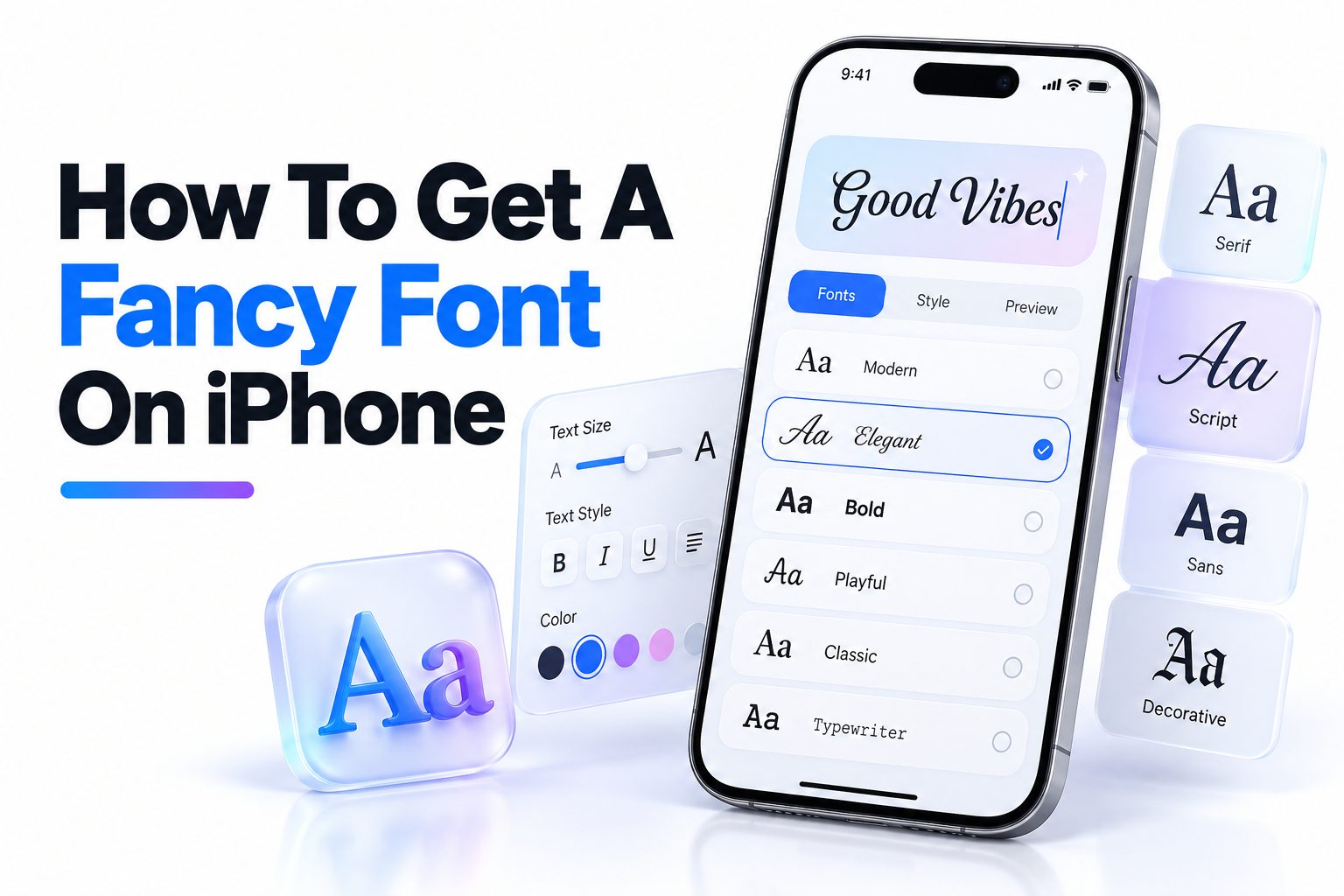
Your iPhone already has a polished visual style, but the default text can feel limiting when you want messages, captions, bios, or notes to reflect more personality. A fancy font can make a birthday post feel celebratory, give a social media profile a distinctive edge, or help important words stand out in a group chat. The key is choosing a method that looks good without making your text difficult to read.
Learning how to get a fancy font on iPhone is less about replacing Apple’s built-in system typeface and more about using font keyboards, text generators, and app-specific formatting tools. These options create stylized text that you can copy into many popular apps. Once you know where each method works best, you can add character to your writing while keeping it clear, accessible, and easy to share.
What Fancy Fonts Mean on an iPhone
Apple does not let users replace the iPhone’s system font throughout iOS. The typeface used in Settings, Messages menus, and most built-in screens is part of the operating system design. Changing it would require unsupported modifications that can create security, stability, and update problems.
Most fancy font options work by converting ordinary letters into Unicode characters that resemble bold, italic, script, bubble, gothic, or small-cap lettering. Because these are special characters rather than a true installed font, you can often paste them into social apps, messaging platforms, and profile fields.
Where Decorative Text Works Best
Fancy text is especially useful in places where visual personality matters more than long-form readability. Instagram captions, TikTok bios, Pinterest descriptions, Snapchat names, and short WhatsApp messages are common examples. A well-chosen style can make a headline, name, or short announcement more noticeable.
It is less suitable for professional emails, school assignments, passwords, web addresses, and important instructions. Some stylized characters may display differently on older devices or screen readers. For practical iPhone tips beyond fonts, see [Internal Link: iPhone customization tips].
Popular Uses for Fancy Font Text
- Social media bios and display names
- Instagram story titles and short captions
- Birthday, holiday, and celebration messages
- Digital invitations and event announcements
- Aesthetic journal entries and personal notes
- Gaming usernames where the platform permits special characters
- Short product labels or highlight covers
Using a Fancy Font Keyboard App
A font keyboard app is one of the fastest ways to type decorative text directly from your iPhone keyboard. These apps usually offer several styles, including serif, script, outlined, bold, monospace, and decorative symbols. You select a style, type normally, then insert the converted text into another app.
Before installing one, check recent reviews, update history, and privacy information in the App Store. A keyboard may request Full Access, which can allow it to send typed information to its developer. Only grant this permission when you trust the provider and understand why it is needed.
Adding the Keyboard in iPhone Settings
After installing a reputable font keyboard, open Settings, then go to General, Keyboard, and Keyboards. Tap Add New Keyboard and select the app. You can switch between installed keyboards while typing by holding the globe icon or tapping it repeatedly.
Many font keyboards work without Full Access for basic character conversion, although certain features may need it. Test the keyboard in Notes before using it elsewhere. This gives you a private place to review how the characters look and whether they copy correctly.
Choosing a Safer Font Keyboard
- Review the app’s privacy label before downloading
- Prefer established apps with clear support information
- Avoid keyboards that request unnecessary permissions
- Read recent user feedback, not only the overall rating
- Disable or remove a keyboard you no longer use
- Type sensitive information with Apple’s standard keyboard
Using Font Generator Websites
A font generator website is a simple alternative if you do not want to add another keyboard. Open a generator in Safari, enter your text, choose a style, copy the result, and paste it into the app where you want to use it. This approach is useful for occasional formatting.
The main advantage is convenience without ongoing keyboard access. You can compare many styles at once and save your favorites in Notes. The downside is that it adds a few extra steps whenever you want styled text, especially if you are creating several captions.
Copying Styled Text Into Apps
Once you copy fancy text, open the destination app and press inside the text field until the Paste option appears. The characters should appear immediately if that app supports Unicode. If a style changes into boxes, question marks, or plain letters, choose a simpler alternative.
Test important text before publishing it. A caption can appear normal on your iPhone but render differently on another person’s device or browser. Bold, italic, and clean serif-style Unicode characters are generally more reliable than highly ornamental symbols.
Font Generator Workflow
1. Write the message first in Notes or the target app.
2. Copy only the word, title, or phrase you want to emphasize.
3. Paste it into a font generator and review several styles.
4. Copy the clearest version rather than the most decorative one.
5. Paste it into your post, bio, or message.
6. Read the full text once more before sharing it.
Creating Fancy Fonts for Social Media
Social media is where fancy font text tends to have the strongest effect. A styled profile name or bio line can make an account feel more intentional, particularly for creators, small businesses, artists, and personal brands. Keep the decorative text short so visitors can still scan it quickly.
For captions, use fancy text as an accent rather than formatting every sentence. A stylized first line can introduce the post, while regular text carries the useful details. This balance gives your content visual contrast without making it tiring to read.
Instagram Bio and Caption Ideas
Use a modest font style for your name, niche, or a short tagline. For example, a travel account may style a brief line such as “Weekend escapes” while leaving location details and contact information in standard text. Clarity still matters when people search for your account.
Captions work well with one decorative heading followed by normal copy. If you are sharing a sale, recipe, quote, or event, reserve the fancy font for the title. This makes the important content easier to understand and helps your post retain a polished appearance.
Text Style Comparison
Style: Bold Unicode
Best for: Headlines and emphasis
Readability: High
Use with care: Good for most apps
Style: Italic Unicode
Best for: Quotes and short labels
Readability: High
Use with care: Keep it to one phrase
Style: Script Unicode
Best for: Names and celebrations
Readability: Medium
Use with care: Avoid long sentences
Style: Bubble or outlined text
Best for: Casual captions and stories
Readability: Medium
Use with care: Test on different devices
Style: Gothic or heavily decorative text
Best for: Short aesthetic words
Readability: Low
Use with care: Use sparingly
Formatting Text in Notes, Pages, and Mail
If your goal is better-looking text inside Apple productivity apps, use their built-in formatting instead of a decorative keyboard. Notes supports titles, headings, bold, italics, bullet lists, and checklists. These options look consistent and remain much easier for readers to access.
Pages offers a wider range of installed typefaces, font sizes, colors, and layout controls. It is the better choice for invitations, flyers, documents, and printable content. You can create a polished design there, then export it as a PDF or image when visual consistency matters.
Using Built-In Formatting for Better Results
Apple’s standard formatting tools are more dependable than Unicode text for documents and emails. They preserve the intended appearance, work better with assistive technology, and avoid compatibility concerns. A strong heading and readable body font often look more professional than ornate characters.
In Mail, you can use bold or italic formatting for emphasis, but decorative Unicode characters should remain limited. They may feel out of place in a business message and can be harder to read when received on a desktop computer. Use clean formatting to keep communication credible.
Practical Formatting Tips
- Use bold text for short, important labels
- Choose Pages for flyers, invitations, and visual documents
- Keep body text in a regular, readable font
- Use color and spacing before relying on decorative characters
- Save reusable styled phrases in Notes for quick access
- Preview exported documents before sending them
Making Fancy Text Readable and Accessible
A decorative font should support your message, not compete with it. The more unusual a character style becomes, the more likely readers are to misread it. This is particularly important for businesses, creators, and anyone sharing information that needs to be understood quickly.
Screen readers may interpret stylized Unicode letters unpredictably, letter by letter, or with unusual descriptions. Avoid using fancy fonts in critical instructions, names, contact details, discount codes, and links. Standard text gives every reader a better chance of accessing the same information.
Balancing Style With Clarity
Use one font style at a time and keep it consistent within a post or profile. Combining script, bubble text, symbols, and emojis in the same line can make even a short message difficult to follow. A simpler style usually creates a more confident visual result.
Pay attention to contrast and context as well. Fancy lettering can look attractive in a social bio but confusing in a marketplace listing or customer support reply. Match the style to the audience, platform, and purpose rather than applying the same aesthetic everywhere.
Important Facts About Unicode Fonts
- Fancy text is usually made from Unicode characters, not installed iPhone fonts
- Not every app, website, or device displays every character style correctly
- Decorative characters can affect searchability in usernames and profile names
- Screen readers may not read stylized text naturally
- Standard text is more reliable for links, passwords, and important details
- Copying your original plain-text version into Notes prevents accidental loss
Troubleshooting Fancy Font Problems
If a fancy font does not appear correctly, start by trying a simpler style. Highly ornate characters are more likely to fail in app fields, games, older phones, or websites with limited Unicode support. Bold and italic variations often provide the most dependable results.
If a keyboard app freezes, displays ads excessively, or requests permissions that make you uncomfortable, remove it. Go to Settings, General, Keyboard, Keyboards, select the keyboard, and tap Delete. You can always use a browser-based generator instead.
When Text Changes After Pasting
Some apps automatically normalize unusual characters, especially in usernames, searchable fields, and forms. This prevents duplicate-looking names and improves security. If your text turns plain after pasting, that platform likely does not support the style in that specific field.
Another common issue is characters appearing as empty boxes. That means the receiving device or app does not have support for those Unicode symbols. Replace the font with a more common variation, or use standard letters with emojis and spacing for a similar visual effect.
Quick Fix Checklist
- Paste the text into Notes first to confirm it copied correctly
- Try a simpler bold, italic, or serif variation
- Update the app where you are pasting the text
- Check whether the field allows special characters
- Keep a plain-text backup of your caption or bio
- Remove keyboard apps that feel intrusive or unreliable
Conclusion
A fancy font can add charm and personality to your iPhone content, especially when you use it with restraint. Keyboard apps and browser generators are useful for social posts, captions, short messages, and profile details, while Apple’s built-in formatting tools remain the better choice for documents, emails, and professional communication.
The best results come from choosing readable styles, testing them in the app where they will appear, and keeping important information in standard text. Once you know how to get a fancy font on iPhone, you can create more distinctive captions and bios without sacrificing clarity. Treat decorative text as a finishing touch rather than the entire design, and your content will look intentional instead of overcrowded.
FAQ
Can I change the default font across my iPhone?
No. Apple does not provide a setting to replace the system font across iOS. You can use font keyboards, Unicode generators, or formatting tools in individual apps, but Settings and most system screens will keep Apple’s default typeface.
Do fancy font keyboards work in every app?
Not always. Most apps accept common Unicode characters in messages and captions, but some restrict special characters in usernames, forms, search fields, and payment-related sections. Test the text before relying on it for an important profile or post.
Are font keyboard apps safe to use?
They can be safe when downloaded from reputable developers, but review their privacy practices carefully. Since keyboards may handle what you type, avoid granting unnecessary access and use Apple’s default keyboard for passwords, banking, and other sensitive details.
Why do fancy letters show as boxes?
Boxes usually mean the app, browser, or receiving device does not support those particular Unicode characters. Choose a less decorative style, such as bold or italic text, which has broader compatibility across current devices and platforms.
Can fancy fonts improve my social media profile?
They can help short labels, names, and headings stand out visually. However, excessive styling may reduce readability and searchability. Use one clear style for a small portion of your bio, then keep essential details in normal text.
0 Comments